Last updated: August 6, 2026
After years of waiting (and a few false alarms), Apple Pay officially launched in the Philippines this August 4, 2026. If you’ve been holding onto your iPhone hoping for the day you can finally tap and pay instead of digging for your physical card, that day has arrived.
Reports actually started trickling in the night before, on August 3, with Filipino Apple users posting screenshots of successfully added cards and completed contactless transactions. Apple made it official the next morning through its newsroom announcement.
How Apple Pay Works
Apple Pay lets you store your debit or credit card details securely on your iPhone, Apple Watch, iPad, or Mac, then use that device to pay instead of swiping or inserting your physical card. Here’s how to set it up:
Step 1: Open the Wallet app
Find the Wallet app on your iPhone (it comes pre-installed, usually with a black icon showing stacked cards). Tap it open, then tap the “+” button in the upper right corner.
Step 2: Choose “Debit or Credit Card”
You’ll see a few options depending on what’s available in your region. Select Debit or Credit Card, then tap Continue.
Step 3: Tap your card or enter details manually
Depending on your iPhone model and card type, you’ll see one or both of these options:
- NFC tap (“Place iPhone on Back of Card”): If your card has a contactless chip, the Wallet app will prompt you to hold your card against the top back area of your iPhone (near the camera bump). Your iPhone reads the card details wirelessly through NFC, similar to how it reads a contactless payment terminal, just in reverse. This is the faster and more accurate method since it pulls the card number and expiration date directly from the chip.
- Enter Card Details Manually: If you don’t want to tap your card, or if NFC isn’t picking it up, you can tap this option instead and type in the card number, expiration date, and CVV yourself.
Either way, you may still be asked to confirm or enter the CVV manually, since that’s usually not stored on the card’s chip for security reasons.
Step 4: Agree to your bank’s terms and conditions
A screen from your card issuer (like UnionBank, GoTyme, or Metrobank) will show up with their specific terms for using the card with Apple Pay. Read through it and tap Agree.
Step 5: Verify your identity
This is the step most people get stuck on, so here’s what to expect. Your bank needs to confirm that you’re really the one adding the card, using one of these methods:
- SMS verification code: You’ll get a text with a one-time code. Enter it directly in the Wallet app.
- Phone call verification: Some banks will call your registered mobile number, and you’ll follow a voice prompt to confirm.
- Bank app verification: A few banks may ask you to open their own mobile banking app to approve the request from there.
The method depends entirely on your bank, not on Apple, so kung minsan biglang tatawagan ka lang, wag kang mataranta, legit na verification call yan.
Step 6: Wait for confirmation
Once verified, your card gets added to Wallet almost instantly. You’ll see it appear as a digital card with your bank’s branding.
Step 7: Set your default card (optional)
If you add more than one card, you can set which one Apple Pay uses by default. Just go to Settings > Wallet & Apple Pay > Default Card and pick the one you want to use most often.
Step 8: Pay with it
At checkout, double-click the side button, authenticate with Face ID, Touch ID, or your passcode, then hold your device near the contactless terminal until you feel a subtle vibration and see a checkmark confirming the payment went through.
For Apple Watch users, the process is similar but done through the Watch app on your paired iPhone, under Wallet & Apple Pay, and payments are made by double-clicking the side button on the Watch itself, then holding it near the terminal.
Which Banks Support Apple Pay So Far
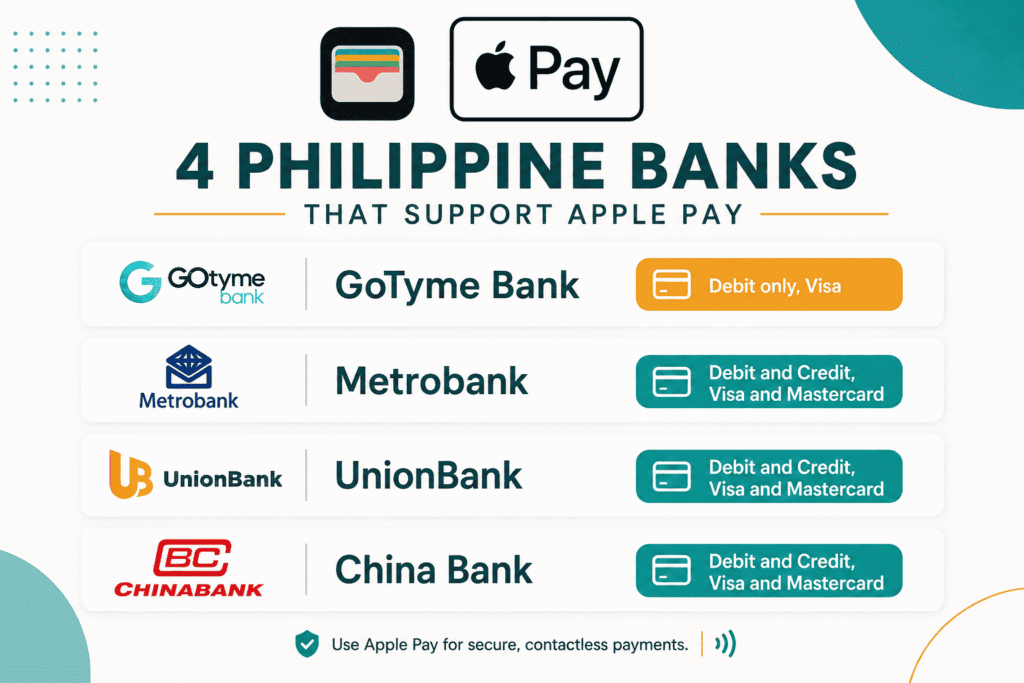
At launch, only four banks are confirmed to support Apple Pay in the Philippines, confirmed by Apple’s own support page, Visa, and Mastercard:
| Bank | Card Type Supported | Network |
|---|---|---|
| GoTyme Bank | Debit cards only | Visa |
| Metrobank | Debit and credit cards | Visa and Mastercard |
| UnionBank | Debit and credit cards | Visa and Mastercard |
| China Bank (Chinabank) | Debit and credit cards | Visa and Mastercard |
A few important notes on this list:
- GoTyme Bank is debit-only for now since it’s a digital bank that primarily issues Visa debit cards. There’s no GoTyme credit card in the Apple Pay lineup at launch.
- Metrobank, UnionBank, and Chinabank cardholders have it easier, since both their debit and credit cards work, across both Visa and Mastercard.
- Some cards from these banks may still not work even if the bank itself is listed, since Apple notes that individual card products are added gradually, not the entire bank’s card portfolio all at once. If your card isn’t working yet, that doesn’t necessarily mean it never will.
You may have seen other banks mentioned online, like BPI, EastWest, RCBC, Maya Bank, and Wise. To be clear, those banks are actually Google Pay partners (Google Pay launched in the Philippines back in November 2025 with a wider initial bank list). They are not yet confirmed for Apple Pay. BPI has reportedly completed tokenization work on its end, but as of this writing, BPI cards are not yet activated for Apple Pay.
Apple has said more banks are expected to join in the coming months, so this list will grow. Kung wala pa dito ang bangko mo, hintayin mo na lang ang susunod na update, or try adding your card anyway since the Wallet app will simply reject it if it’s not yet eligible.
Where Can You Use It
Apple Pay works anywhere that accepts contactless (tap-to-pay) transactions, which by now covers a wide range of merchants in Metro Manila and beyond. Early adopters have reported successful purchases at everyday spots like Starbucks and 7-Eleven, and even at the MRT-3 turnstiles using a GoTyme card. Launch-day merchants also include names like Abenson, Ayala Malls, Foot Locker, Globe, Jollibee, Power Mac Center, Rustan’s, Shake Shack, and Smart. Since Apple Pay rides on existing card networks, any retailer with a contactless-enabled terminal should work, whether it’s a mall, a grocery store, or an online checkout page.
Why This Took So Long
Filipinos have watched neighboring countries like Singapore, Malaysia, Thailand, and Vietnam get Apple Pay years ahead of us. Part of the delay came down to regulatory clarity. The Bangko Sentral ng Pilipinas (BSP) eventually classified Apple Pay (and Google Pay before it) as a technology service provider rather than a payment system operator, which meant it didn’t need to go through full BSP registration as a separate financial entity. That classification cleared the legal path, but banks still needed time to complete tokenization and testing on their end, which is why the launch happened gradually instead of all at once.
For context, Google Pay beat Apple Pay to the Philippine market, launching back on November 18, 2025 with a wider initial bank list. Apple Pay’s arrival now gives iPhone users the same convenience Android users have had for the better part of a year, though with a narrower set of supported banks for now.
Frequently Asked Questions
Is Apple Pay free to use?
Yes, there’s no fee for using Apple Pay itself. It simply taps into your existing card’s payment network, so any fees would come from your card issuer, not from Apple.
Do I need a specific iPhone model?
Apple Pay works on iPhone SE (2nd generation) and later, and iPhone 8 and later. It also works with Apple Watch Series 3 and later, supported iPad models, Macs with Touch ID, and Apple Vision Pro.
Can I use Apple Pay for online purchases, not just in-store?
Yes. Apple Pay works for in-store contactless payments, in-app purchases, and online checkouts on websites that support it, using Safari on your iPhone, iPad, or Mac.
What if my bank isn’t listed yet?
It means your bank hasn’t integrated with Apple Pay yet. Apple has said more banks will be added in the coming months, so check back periodically or watch for your bank’s official announcement.
Is my card information safe with Apple Pay?
Yes. Apple Pay uses tokenization, meaning your actual card number is never stored on your device or shared with merchants. Each transaction uses a unique, encrypted code instead.
Blogger’s Corner
Ang bagal talaga ng Apple Pay pumunta dito sa Pilipinas, pero excited pa rin ako na finally, andito na siya. Sa ngayon, apat pa lang na bangko ang supported (GoTyme, Metrobank, UnionBank, at Chinabank), pero kung member ka ng isa sa mga ito, subukan mo na i-add yung card mo sa Wallet app ngayong araw. Kung wala ka pa sa listahan, wag mag-alala, sabi mismo ni Apple, darating din ang ibang bangko sa mga susunod na buwan. I’ll keep this article updated as more banks get confirmed.
This article is for informational purposes only and does not constitute financial advice. Bank and merchant support for Apple Pay may vary and continues to roll out gradually. Please check with your bank directly for the most current status of your card’s eligibility.